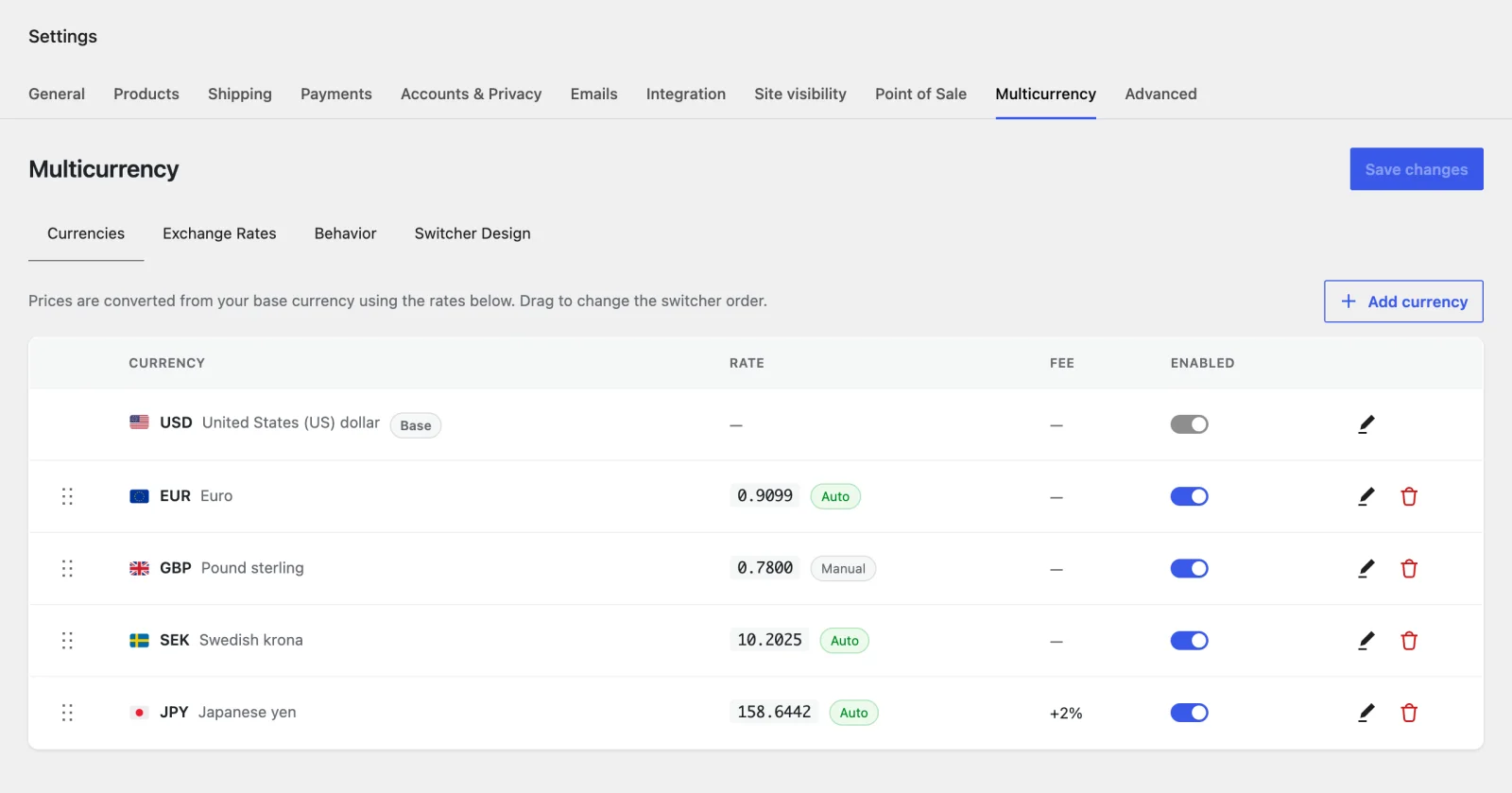
WooCommerce sells in one currency out of the box. With Multicurrency you add as many as you like, and each one gets its own rate, rounding and formatting. This guide adds the first one.
Steps
- Go to WooCommerce → Settings → Multicurrency. The Currencies tab opens first, with your store currency at the top marked Base.
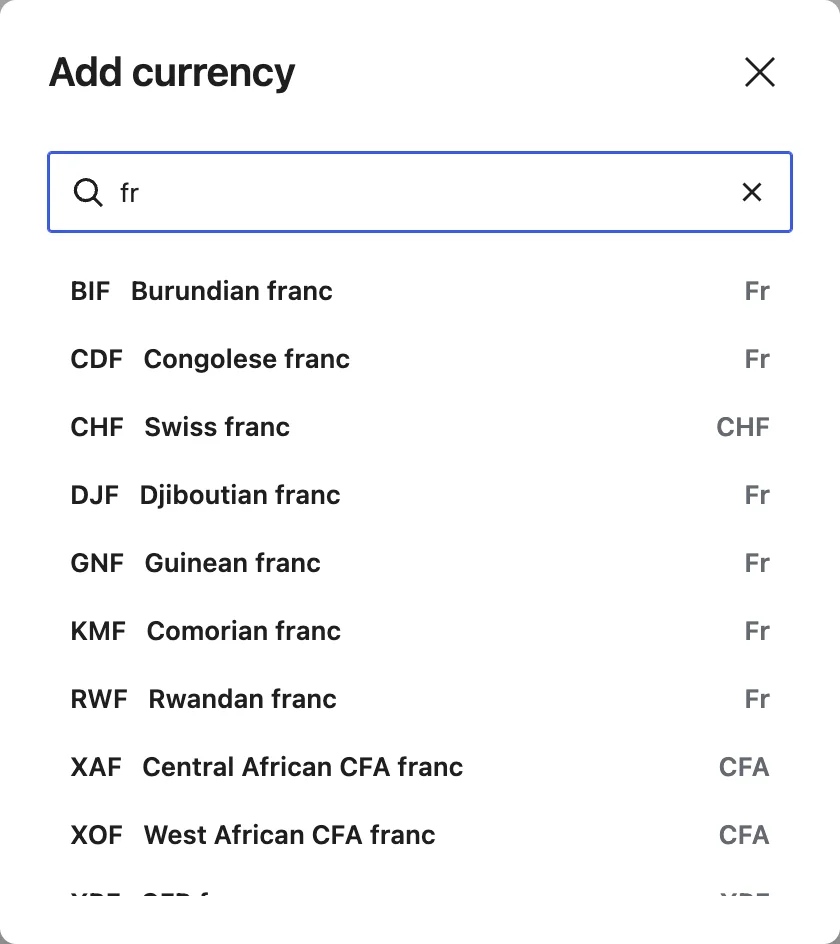
- Press Add currency. Type a code or a name, for example
EURorfranc, and click the currency. - The new currency appears in the table with a rate of 1. Open the Exchange Rates tab and press Update rates now to fetch the real rate.
- Press Save changes.
- Open your shop. The currency switcher now lists the new currency.
Good to know
- Drag a row to change the order. The switcher shows currencies in the order of this table.
- The switch in the Enabled column turns a currency off without losing its settings.
- Your product prices stay stored in your base currency. Other currencies are calculated when a page is shown.